Positek.net Positive Technology Solutions from Positek.net LLC

About Us | Contact Us| FAQ
Handy Setup Checklist | Who do I Trust? | Frequently Asked Questions
Handy Maintenance Checklist | Who do I Trust? | Frequently Asked Questions
Handy Diagnosis and Repair Checklist | Who do I Trust? | Frequently Asked Questions
Safety Checklist | Safe Downloads | Who do I Trust? | Frequently Asked Questions
Hardware | Software | Business Support Services | Personal Support | Advice | Frequently Asked Questions
subglobal6 link | subglobal6 link | subglobal6 link | subglobal6 link | subglobal6 link | subglobal6 link | subglobal6 link
subglobal7 link | subglobal7 link | subglobal7 link | subglobal7 link | subglobal7 link | subglobal7 link | subglobal7 link
subglobal8 link | subglobal8 link | subglobal8 link | subglobal8 link | subglobal8 link | subglobal8 link | subglobal8 link

Internetworking

Internetworking

When your computer is connected to other computers, it is "networked". When your computer is connected to the internet (even if not to other computers in your office or home), you are also networked. We like to use internetworking to distinguish between these two states. Internetworking happens when your computer is actively connected to the internet, regardless of how you connect (dial-up modem, cablemodem, DSL modem, satellite, or direct internet connection through your ofifce). This page provides you with some quick background about internetworking, as well as some specific things to watch out for as you use the internet, some 'rules of the road' and some helpers to make your internetworking less work and more fun.

Internetworking refers to any and all use of the internet, whether you surf to websites using a web browser, send and receive email, do Instant Messaging, connect to online services, use the internet for making phone calls - you name it. While we cannot cover every situation, we have detailed the most common activities below, along with our advice and guidance regarding those activities.

Surfing the Web

Your primary tool for that is a web browser. Every Windows computer comes with Microsoft's Internet Explorer which is used by about 90% of the world for surfing the web. Alternatives are Firefox, Opera, and Netscape Navigator. You should note that these web browser programs do not display web pages exactly the same way. Web pages are designed by companies, and they often cannot afford to spend the time needed to write code that works equally well on all of these web browsers. For example, this website works reasonably well on each, but there are slight differences in how a certain web page looks on each of these web browsers.

Websites can be dangerous places! At a website, your computer can be instructed to install or run a program, information or files can be placed on your hard drive, and your PC can be affected - sometimes negatively - all just from displaying a web page. No, not any web page, this sort of thing happens when you (accidentally or on purpose) visit a website of some 'bad guy'. Yes, there are lots of bad guys out there, we use that terms to describe the thousands of individuals who create and release computer viruses, hackers who take over unprotected computers to do their work for them, and other individuals who create and distribute spyware, ad-ware, and malware that can both spy on your computer usage and report that to someone else, and create problems for your computer.

So you need protection! As we note in our Safe Computing Checklist and our New Computer Setup Checklist, you should install at least 3 computer programs on your PC to protect it: an anti-virus program, an anti-hacker program (aka a 'firewall'), and an anti-spyware program.

Also, you may want to use some helper programs that make surfing the web easier. Click on the links in this paragraph to visit the websites of the manufacturers of these programs. On the internet, a standard document type is the Portable Document Format (PDF). In order to view these files, you need the Adobe Reader program. You'll also encounter some interesting displays using Flash and Shockwave players. And we think that the internet is such a great place to do research, so you'll need a tool to help that effort. We like to install the Google Toolbar right into your web browser, so it's handy for quick searches on just about anything you can think of.

Please take a look at one of our "Who do I Trust" documents, such as this one, for information on how you should limit what helper programs you install on your computer. In short, unless you are sure you both need something and it is safe, don't install it! Be wary and you'll be safer.

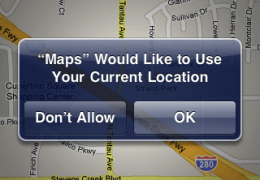
With these helper programs installed, you are ready to fire up your web browser and start surfing the web. But there are a few things you should consider in terms of how you react to what is displayed. For example, from time to time, either Windows, your web browser, or some other program will pop up windows or dialogue boxes either telling you about something, or asking you to let something happen. Don't just click on these without reading what they say carefully, and following safe computing practices. Bad guys are always trying to find ways to get past you, and you need to be on your guard.

Email

Email has become ubiquitous, in that nearly everyone who has a computer uses it. Every Windows computer includes Microsoft's Outlook Express, and the full version of Outlook comes with Microsoft Office. These types of email programs get your email from the internet and download it to your computer. In addition, many folks use "Web Mail" which is also email, but instead of using your computer to hold the email, you go to a web page (using your web browser) and look at your email, which resides on a computer (aka a "mail server") on the internet. AOL uses a proprietary version of web mail, as do most of the free email services, such as Yahoo Email, Gmail, etc. The advantage of using web mail is that you can access your email from any computer. However, with an email program on your computer you can likely do many other useful things, like create paper phone books, manage your email, integrate email with other programs on your computer, etc. But for simplicity's sake, web mail is certainly that, and most folks prefer simplicity.

Again, you need to protect yourself from bad email. If you've followed our Safe Computing Checklist or New Computer Setup Checklist, you've already installed the protection programs you need, but that's not enough. You need to practice safe emailng. Don't open any emails that look suspicious. Don't open any file attachments from within your email program. If you really need the file attachment, save it to your hard drive first, and then scan it for viruses. If it's clean, you can open it (providing you have the appropriate program installed on your computer to view it).

SPAM is unsolicited email, also called junk mail, and it's a serious problem. Current estimates are that over two-thirds of all email going from place to place on the internet is SPAM. This junk is clogging the internet, which only has so much capacity to transmit data from one place to the other at any given nanosecond.

To be continued...

Instant Messaging

IM is the hot new communications medium, quickly outstripping email.

To be continued...

Some notes on how to use the internet safely

Purchasing goods and services online is growing at an exponential rate. In general, if you only deal with reputable merchants online, your credit card is as safe as if you used it in a physical store.

To be continued...

Positek.net About Us | Contact Us | Our Policies | Privacy | ©2004 Positek.net LLC