|
On this page, we have two
items to help you protect yourself and your information.
Click one of these buttons or just scroll down.

Computer Security Checklist
Keeping your Personal Computer and Network Safe
There are just a few items to do to keep your PC safe, but
it can take perhaps an hour or more per month to do so. If
you put these maintenance tasks off, it can take a lot longer,
especially if you have to clean up problems. Fortunately,
some of these are one-time or once-a-year efforts. You can
decide how often to do the recurring tasks, we suggest monthly.
One-time:
- Put a password (any password) on all
Windows user accounts - you can even use the same one.
A Windows computer without a user password is like a house
with an open back door.
It doesn't need to be complex, but should not be a simple
name or word.
- If you have
broadband and have a router, be sure to change the default
password on the device. If you have a wireless network
access point separate from the router, do the same for that
device.
Annually:
- Get, install, and keep a valid
subscription to a quality computer security program. We
currently recommend Norton Internet Security 2010 for most
people, you can get it at any office supply store or at
.
If you don't want to use an all-in-one security suite, then
you'll need to get programs to protect you against hackers,
viruses, spyware & malware, spam, and other online threats.
Recurring:
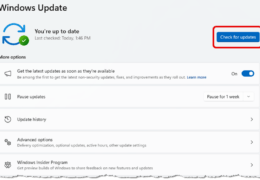
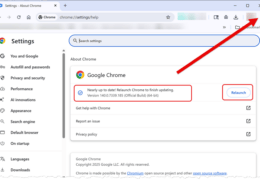
- (Recurring) Keep your system up-to-date. Run
Windows Update (or Microsoft Update), Adobe Updater, Apple
Software Update, and get updates for any other software on
your computer.
Periodically, check with the computer manufacturer for
driver updates (we like this better than getting them from
Windows or Microsoft Update). And if you leave your
computer on 24/7, restart it occasionally.
- (Recurring) Make a copy of the
personal data on your computer. The copy can be on a
thumb drive, an external hard drive, a CD-R, or a Network
Storage Drive. We recommend you copy these three
folders for each active Windows user account: My
Documents, Desktop, and Favorites. If you have your
personal files located elsewhere on your computer, you
should move them to one of these locations.
If you have not followed this checklist or only did some
of it, your computer will almost certainly need some
help. If that's you, visit our

Safe Computing
Practices
Keeping you and your information safe on the internet
There are a number of actions, behaviors, and things to
avoid here. We feel that safe computing is more of
a process than just a list of do's and don'ts.
We'll include plenty of do's and don'ts below, but you
should focus on education - for yourself and for those
who depend on you (your employees, spouse, children).
Suspicion: The first process is a
paranoid view of what's available on the internet.
Here is where you don't just accept what you see on the
internet as the truth, but treat everything you see with
a healthy dose of suspicion. Even this website
could be getting you to do something you shouldn't.
Well, maybe not us, but there are plenty of websites and
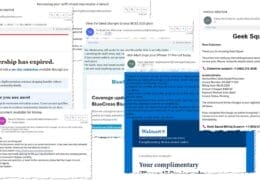
emails that act and look like they are helping you, when
in fact they are misleading you, infecting your
computer, or compromising your information.
-
Know that email is inherently
insecure. Anyone can send an email message and easily make
the From: line be whatever they want. Spammers will often
raid people's Contact lists or email address books for addresses
to use, although they are also now just randomly generating fake
email addresses. Don't trust anything you read in email,
particularly warnings about viruses, scams, etc. We have
seen thousands of these (literally!) and absolutely none of them
was true. The worst one's are those that have some truth
in them, mixed with fakery.
-
Websites can say anything
they want - there is little or no enforcement of any law or rule
of decency, or anything. While many websites (like us!) do
give good information, there's really no way for you to know for
sure without some corroboration. So generally, if it's a
website you know and trust from past association, you can trust
it (somewhat, websites do get hacked!). If it's a website
that's a known online entity (amazon.com, for example), then you
can also trust it. If it's a website that's been passed
onto you by a friend, neighbor, associate, or acquaintance, be
careful! Even our smartest netizens have been fooled by
sneaky websites! You can look for multiple corroborations
easily - we often do a 6-second research project by googling
whatever we're questioning, looking for suspicious hits, and
then maybe googling that term plus other terms like "spyware",
"malware", "scam" and "hacker".
-
Even your own computer can be
easily compromised, especially if you don't follow a good
security checklist like ours above, and safe computing
practices. It is absurdly easy for someone to send you a
fake email from someone you know, which has you open a file
attachment that looks legit but actually also places a little
bit of spyware on your computer. That little bit is not
even noticable - but it "holds the door open" for all kinds of
spyware, malware, and hacker programs. In general, "X-out"
any popup messages that do not come from a
program that you installed on your computer. Then run
straight to our
and get some tools to help you remove whatever got on your
computer that made that happen.
Passwords and Usernames: Boy we
hate 'em, but they are necessary. You need to have
both usernames and passwords to navigate around the
internet these days, if you want to do anything useful
(to you) like online shopping, communicating, and
sharing. The biggest trouble is that you end up
with zillions of passwords and usernames, and you can't
keep them straight. Plus, you shouldn't write them
down or record them anywhere. So how do you handle
this? We suggest you create four passwords, and
segregate how you use them. Then, commit those
four passwords to memory (try typing them each 25 times
and it'll be easy!). We suggest:
-
Create a simple password that you can use on
your Windows user account. It need not be
complex, but easy to remember and not easily guessable by a
stranger (which can be someone physically at your computer, or
someone who hacked into your network and is 'at the door' of
your computer). You can use spaces, and any key on the
keyboard. A short phrase or sentence is best. If
your computer has multiple user accounts, you can use the same
password (or simple variations) for each account. Do not
use this password online.
-
Create an 8-character password that you will
use on all websites that don't include
online shopping or any other financial transaction.
This can include newsletter websites and social networking
websites. This password should include at least one
letter, one capital letter, and one other type-able item (like
#, $, %, etc.) but don't use spaces. Lots of folks have an
easier time remembering this password because they type it a
lot, but you can also use a mnemonic - characters associated
with something you know.
-
Create another 8-character password
to use for all websites where you make purchases with a
credit card or give access to your money.
This includes online shopping sites (reputable merchants only!).
Again, this password should include at least one letter, one
capital letter, and one other type-able item (like #, $, %,
etc.) but don't use spaces.
-
And finally, create another 8-character password
to use strictly for online banking or financial
transactions. This includes your bank,
credit card company, and online financial institutions (like
Paypal). Again, this password should include at least one
letter, one capital letter, and one other type-able item (like
#, $, %, etc.) but don't use spaces.
Do not mix the use of these passwords. If you
suspect for any reason that one of these passwords has
been compromised, simply change that password to a new
one, and change the password on all the places where you
used it before. Be sure to type a website address
directly - don' t depend on hyperlinks in websites or
emails (which can be easily faked).
About the username - the simplest thing is to use your
email address for numbers 1 and 2 above. Use
something different for all websites for #3 above.
For #4 above, your financial institution will likely
have strict requirements for usernames that you must
follow. Again, memorize this stuff.
If you have a safety deposit box or safe, that's about
the only place we'd call a safe place to have a record
of these usernames and passwords.
Mail, IM, Social Networks: I know
we touched on some of this above, but it deserves full
treatment IMHO.
-
Email accounts are a dime a dozen. You
should have at least two: The first one is usually
provided by your internet service provider, and that one you
shouldn't use online anywhere - just use it to communicate with
your friends, family, colleagues, your financial institution(s)
- anyone from who you actually wish to receive email. The
second email account should be a free one, gmail, hotmail,
whatever you like. That's the account (let's call it the
junk mail account) you use when registering at websites - even
one's where you use a credit card. Check your primary account
daily, check the 'junk mail' account less often. Almost
every commercial entity on the internet will sell your email
address to someone, helping to generate junk mail. Lastly,
you can periodically start up a new junk mail account and start
using it. After a few months, the old junk mail account
will be getting nothing but junk mail, and you can stop using it
(don't bother to try to de-register that account, after a while
the host will know you aren't using it and kill it for you).
And of course, never use your primary email account on anything
online if you can avoid it, it'll just attract junk mail (aka
spam).
-
Never respond to junk mail - ever! Don't
try to unsubscribe (unless you actually did subscribe to
something) or have yourself de-listed - it doesn't work and just
proves to the spammers that your email address is valid.
-
Never assume that the email you are reading
(in any email account) is actually coming from who you think it
is (or the email address listed in the From: line). Email
is absurdly easy to fake. Your bank, credit card
companies, and any other financial institutions should never
send you an email warning about anything, nor give you a link to
log in (email is so easy to hide where hyperlinks actually go).
-
Make it a practice to never click on a link in
an email - if you want to see something, open your web browser
and type in the address. Again, hyperlinks are easy ways
for hackers to invade your computer. This includes online
greeting cards, notices from a delivery company, free money (or
anything), and all the myriad ways that hackers have been
fooling even smart people for years.
-
For that matter, also make it a practice to
never open a file attachment in an email, even from someone you
know. If you need it, save it to your desktop or My
Documents folder or somewhere, then scan it with your security
program first. If it's safe, then you can consider opening
it. But onlyl if you were expecting it or have
communicated with the actual sender beforehand to make sure they
were the one's who sent it to you.
-
If you have a spamblocker (Outlook's Junk
Email feature can work ok, and Norton Internet Security's
Anti-Spam is even better). Any junk mail filter takes time
and effort to train, on an ongoing basis. The spammers are
always finding new ways to get past the filters.
-
For that matter, never open suspected spam -
just delete it. If you just gotta know what's in it, open
it safely - from Outlook, if it's in the Junk E-mail folder, you
can open it safely - everything is disabled.
-
If you use Outlook and don't use anything
except your email folders and your Contact List, you may want to
consider using WebMail (from most any internet service
provider). Outlook is way overkill unless you need all the
features, and WebMail is much safer for you. Usually,
WebMail is scanned for viruses, is filtered for spam, and will
never get deleted if your computer crashes.
-
For IM, you should never assume that the buddy
you think you know is actually that person, unless you have
traded IM screen names in the physical world. Even so, you
should never post personal details about you - your birthday,
address, phone number, favorite color, etc. Nefarious
netizens can impersonate anyone. And if you have IM'd
anyone you don't know in the physical world, never, ever agree
to meet them in person!
-
For the rest of social networking (Facebook,
YouTube, etc.) follow the same rules for IM, and don't accept
friends you don't know in the physical world, or friends that
haven't been verified as "ok" through some other means (an d
email ain't one of them). Never give your contact info
out, avoid posting pictures that give away your physical
location (street names, address numbers, etc. in the
background), and don't post pictures or information that anyone
would consider inappropriate - the internet has a way of hanging
onto whatever you put there for a long time. At some
point, you don't want to be embarrassed, or worse.
-
Lastly, don't respond to "unsolicited"
anything in the online world - it doesn't matter if it's a noble
cause, a great charity, a catchy chain email...nothing.
There is no identity-verification on the internet (to speak of),
and there are literally thousands of nefarious netizens working
hard to generate this stuff to get your information, money, or
just the use of your computer. If you feel charitable, use
your web browser, and type in the address of the place you want
to go. For that matter, we like the six-second research
project, googling the terms of what you want, and just looking
at the titles of the hits. We often google those terms,
and add other terms, such as spyware, virus, hacker, spam,
rumor, urban legend, scam, etc. Just look at the headings
on the search results and there are usually enough hints as to
whether something is risky or not.
Software (purchased or Downloadable):
Even if you are using the most expensive software, that
doesn't mean that it's not buggy, has no security
vulnerabilities, or will even do what it's supposed to
do.
-
First and foremost, don't install any software
you don't really need. Everytime you make a change to your
computer (adding or removing software, updating software, etc.)
you run the risk of something getting messed up on your
computer. This can be annoying, like slowing the system
down, or disastrous, like trashing your computer completely.
If you haven't backed up your information, that can be brutal.
One of these days, there will be really useable software
'sandbox' environments where you can try out software without
changing your computer, but the various offerings from companies
aren't ready for for prime-time (IMHO).
-
Do not ever install or enable file-sharing
software, except perhaps between computers on your own local
network. Not just because it's usually illegal or at least
unethical, but because it's also a back-door into your computer
for hackers to get in and do real mischief (or damage).
-
Keep your installed software up-to-date -
we're talking about the commercial stuff you use such as
Microsoft Office, and the (short list of) free software you can
get from the internet. That short list includes Quicktime,
iTunes, Picasa, Adobe Reader, and Adobe Flash Player. When
you do get this free (and good) stuff, decline any offers for
other free stuff - it is never worth it.
-
A word about alternative browsers. We
have a slightly different view of the utility of such:
They aren't worth it. Hackers and the like are constantly
finding new ways to do you wrong, and the more stuff you add to
your computer, the more you have to work to keep it secure.
We recommend you decide if you want a 2nd browser (IE comes with
all Windows computers), and only use it if you plan on being
assiduous about keeping it as up-to-date as you keep IE
(assuming you do!). There is nothing more unsecure than
out-of-date software that opens your computer to hackers.
-
A word about hackers, spammers and other
nefarious netizens. They aren't all bad guys, often
they're just trying to make a buck like anyone else - at your
expense (like, as in YOUR bucks!). There are gangs of
hackers in many places in the world, and they take over
computers from unsuspecting folks, and then trade them like
baseball cards - continuing to load spam programs and virus-like
programs to capture information, spread their contamination, and
open the door to still more stuff you don't need or want on your
computer. We implore you to NOT be a sucker for the stuff
that washes across the internet - play (er, use) your computer
wisely, and safeguard your information (not to mention sanity).
Ok, enough soapboxing!
-
Watch your taskbar - if new icons appear,
that's evidence that your system is getting junked up. Feel free
to use our
if you need to, to get rid of the clutter. We're hoping
that with Windows 7 now available, there should be less
opportunity for such.
-
Never, ever operate your computer without
protection. We mean protection against viruses, malware,
spyware, hackers, and all the other threats. And never let
your protection lapse, they are almost always
subscription-based. Only use the current version of these
programs (hackers can get them as easily as you can, and
reverse-engineer them).
And finally, periodically check your system for
damage, unintended software installations, and damaging activity.
Use the tools in our
to help you keep your system clean, lean, and working for you!
Follow
these tips and you'll likely keep yourself and your
computer out of trouble. And if ever in doubt
about anything on the internet, take a moment and do an
internet search - see if it looks suspicious.

|